
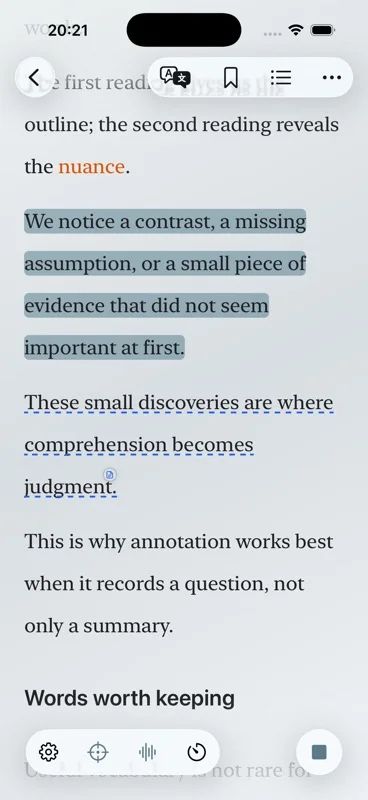
Short answer: a TTS reader turns writing into speech. Aurader keeps that speech attached to the page, so you can read EPUB, PDF, TXT or an article and listen without losing the sentence you are on.
What this text-to-speech reader can open
Aurader splits longer files and shorter pieces. The Bookshelf is for EPUB, PDF, TXT and audiobooks, plus other Readium-compatible reading formats. Articles are for something you write or paste, a file (including DOC or DOCX where supported), a scanned page, a webpage, or an RSS or Atom feed.
That split is the practical difference between this page and the format guides. EPUB reader and PDF reader explain which file to choose. Read an EPUB aloud and PDF text to speech on iPhone are the step-by-step versions. This page is the map: where the text lives, and which voice speaks it.
EPUB usually keeps chapters and reflowable text, so listening can follow the book. A PDF with real text can be read aloud when the reading order is clear. A scan is a picture of a page. Aurader can take a scanned page into an article, but a PDF that has no selectable text will not speak until that text exists.
Which text-to-speech engine to use
Aurader does not lock you to one voice list. Standard speech uses Apple system voices on the device. Offline neural voices are available in English. You can also use the built-in cloud engine, or connect your own TTS API. Which languages you hear depends on the engine and the voices available to you.
| Engine | Use it when | Network |
|---|---|---|
| System | You want a voice already on the iPhone or iPad, including languages other than English. | Not required once the voice is on the device. |
| On-device neural | You want a more natural English voice that stays on the device. | Not required after the voice is available. English only. |
| Built-in cloud | You want the cloud engine Aurader includes. | Required. The text needed for synthesis is sent to that provider. |
| Your TTS API | You already have a provider and want to connect it. | Required. Synthesis text goes to the provider you select. |
- Add the book or article. Bookshelf for EPUB, PDF and TXT. Articles for a paste, a file, a scan, a webpage or a feed.
- Open where you want to start. Chapter, page or paragraph. Listening position and reading position are stored apart, so you can look ahead without moving the voice.
- Choose the engine. System, English on-device neural, built-in cloud, or your own API.
- Listen. The current sentence stays highlighted.
- Shape the session. Speed and voice are adjustable. Optional background music and ambient sound can sit under the voice. A sleep timer can stop playback.
Privacy: local engines keep supported speech on the device. A cloud voice or a TTS API you connect sends the text required for synthesis to that provider. Details are in the privacy policy.
Read and listen without losing the sentence
The point of a reader, rather than an exported audio file, is that the page stays. Highlighting follows the spoken sentence, so you can look up a name, drop back to reading, or keep your eyes closed. When you return, listening starts from the listening position, not from wherever you last scrolled.
Background sound is optional. An Atmosphere can add background music, ambient sound and a visual scene. Free accounts can use background music for 20 minutes a day. Premium removes that daily cap. Music should stay under the voice. The homepage shows what those scenes look like.
Limits that apply to every format
Aurader is free to download. The free tier can keep up to 10 books and 10 articles. Membership raises limits. Premium also covers extras such as iCloud sync, audio export and certain on-device models. Purchases are a one-time lifetime membership, or a weekly subscription. Existing subscribers manage that in Apple account settings.
Pick the guide that matches the file
- EPUB reader with text to speech if you are deciding whether the book should be an EPUB.
- How to read an EPUB aloud if the file is already an EPUB and you want the import steps.
- PDF reader with text to speech if you need to know whether the PDF has text.
- PDF text to speech on iPhone if you want the iOS steps.
- Text to speech for study for highlights, translation, the wordbook and quote cards.
- Offline text to speech for flights and anything that must stay on the device.
Questions about this guide
Does Aurader read EPUB and PDF aloud?
Yes. Import EPUB, PDF or TXT onto the Bookshelf and listen with the spoken sentence highlighted. Articles cover shorter text, scans, webpages and feeds.
Which voices work offline?
Apple system voices can work on the device after they are available. On-device neural voices are currently English. Cloud voices and a TTS API need a connection.
Is Aurader free?
It is free to download. Free accounts can keep up to 10 books and 10 articles, and 20 minutes of background music a day. Premium is an in-app purchase.
Will Aurader upload my book?
Book import and file parsing stay on the device. If you choose a cloud engine or your own TTS API, the text needed for synthesis is sent to that provider.